> For the complete documentation index, see [llms.txt](https://docs.messageflow.com/llms.txt). Markdown versions of documentation pages are available by appending `.md` to page URLs; this page is available as [Markdown](https://docs.messageflow.com/integrations/e-commerce-and-cms/integrators/base-baselinker.md).
# Base (BaseLinker)
Base (formerly BaseLinker) is a multichannel sales management system that integrates various marketplace platforms and stores in one place. Connecting it with MessageFlow via SMTP allows you to centralize the sending of all email notifications to customers (e.g., about orders, status changes) and handle it through a professional infrastructure. This gives you access to advanced analytics for communication from all your sales channels, while insight into detailed logs and message statuses in the MessageFlow panel provides full control over your customer correspondence.
## **Before you begin**
Make sure you have your MessageFlow SMTP credentials ready, as you will need them during the configuration process.
* You can find these credentials in your MessageFlow panel under **Email API -> Settings -> SMTP Accounts**.
* For more information, see our general documentation: [Broken mention](broken://pages/dpRhuQ0FqiSatDxOPTDp)
## **Step-by-step configuration**
1. Log in to your account in the Base system.
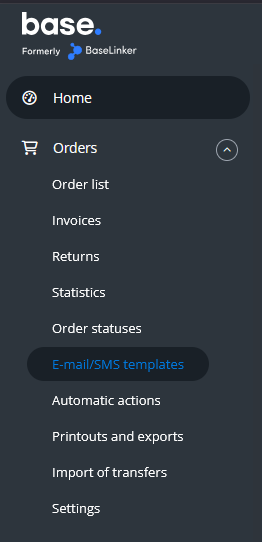
2. From the menu on the left, go to **Orders**, and then from the expanded menu, select **E-mail/SMS templates**.
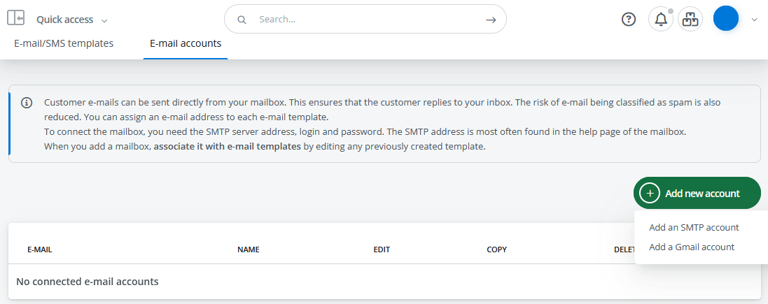
3. In the new view, click the **Email accounts** tab.
4. Click the green **+ Add new account** button, and then select **Add an SMTP account** from the drop-down list.
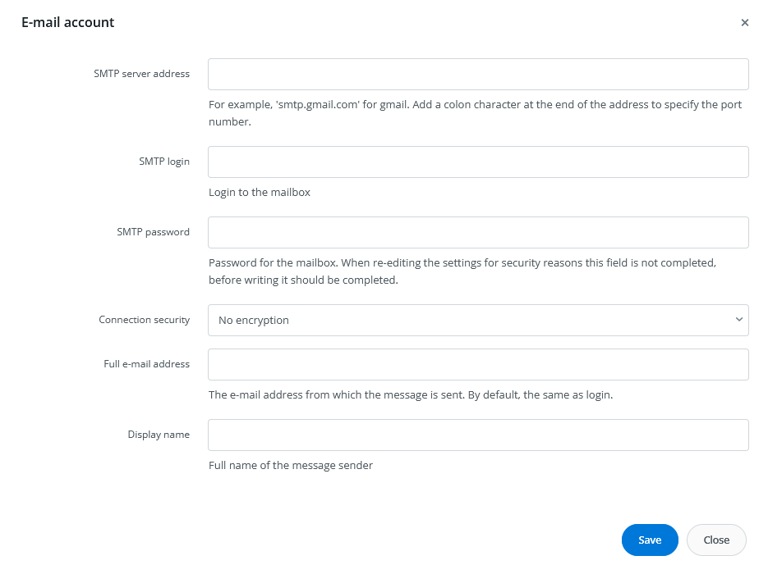
3. In the displayed form, fill in the fields using your SMTP credentials from the MessageFlow panel:
* SMTP server address: `smtp-relay.messageflow.com`
* SMTP Login: Enter your username in the format `1.your_account_name.smtp`.
* SMTP Password: Enter the password for your SMTP account.
* Connection security: Select TLS from the list. This is the recommended method, ensuring your message transmission is encrypted.
* Full e-mail address: Enter the email address that will act as the sender (e.g., ). Remember that the domain you use here must be properly authorised in your MessageFlow panel beforehand.
* Display name: Provide the sender name that will be visible to your customers (e.g., YourBrand Customer Support).
4. After filling in all the fields, click **Save** to complete the configuration.
## **Verifying the integration**
To check if the integration works correctly, perform an action in Base that results in sending an email to a customer (e.g., change the status of a test order to one that has a message template assigned).
Then, log in to the MessageFlow panel and go to the Email API -> Email Reports section. If the message is visible, it means your Base system is now correctly integrated with MessageFlow!