> For the complete documentation index, see [llms.txt](https://docs.messageflow.com/llms.txt). Markdown versions of documentation pages are available by appending `.md` to page URLs; this page is available as [Markdown](https://docs.messageflow.com/integrations/email-clients/mozilla-thunderbird.md).
# Mozilla Thunderbird
Mozilla Thunderbird is a free, open-source email client valued for its flexibility. Integrating with MessageFlow via SMTP allows you to send messages using our specialized infrastructure, bypassing your standard email provider's servers. This gives you full control over your sending and access to detailed reports and analytics in the MessageFlow panel, allowing you to measure the effectiveness of your communication. The ability to track the status of each message and use servers with a high reputation can also positively impact the security and deliverability of your emails.
## **Before you begin**
Make sure you have your MessageFlow SMTP credentials ready, as you will need them during the configuration process.
* You can find these credentials in your MessageFlow panel under **Email API -> Settings -> SMTP Accounts**.
* For more information, see our general documentation: [Broken mention](broken://pages/dpRhuQ0FqiSatDxOPTDp)
## **Step-by-step configuration**
1. Open the Mozilla Thunderbird application.
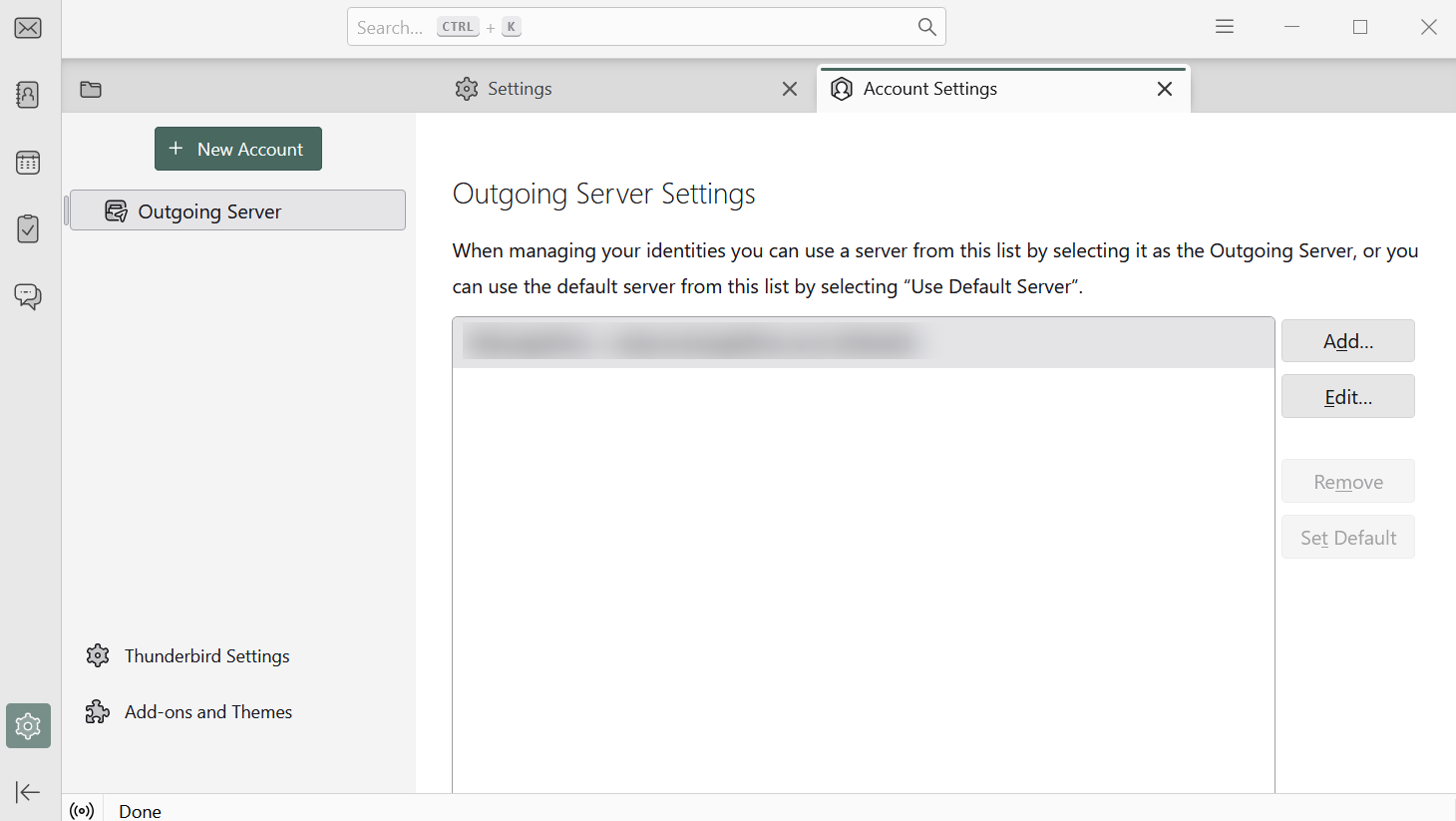
2. From the application menu, navigate to **Account Settings**.
3. In the left-hand menu of the Account Settings window, select **Outgoing Server (SMTP)**.
4. Select the email account you wish to configure from the list and click the **Edit...** or click **Add...** button.
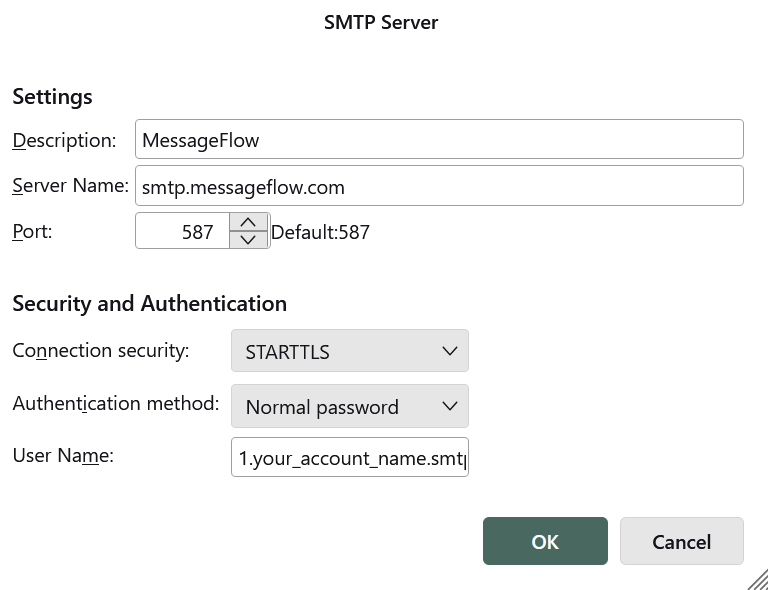
5. In the SMTP Server window, fill in the following fields using your data from the MessageFlow panel:
* Description: Enter a name to help you identify this account (e.g., MessageFlow Work).
* Server Name: `smtp-relay.messageflow.com`
* Port: `587`
* Connection Security: Select STARTTLS.
* Authentication Method: Select Normal password.
* User Name: Enter your username in the format `1.your_account_name.smtp`.
4. Click **OK** to save the settings.
5. The first time you send an email after this configuration, Thunderbird will prompt you to enter your password. Enter your SMTP account password and check the box to use the Password Manager to remember this password to avoid entering it again.
## **Verifying the integration**
To check if the integration is working correctly, send a test email to an external address (different from the one you are configuring).
Then, log in to the MessageFlow panel and go to the Email API -> Email Reports section. If your test message is visible on the list, it means Mozilla Thunderbird has been successfully integrated with MessageFlow!