> For the complete documentation index, see [llms.txt](https://docs.messageflow.com/llms.txt). Markdown versions of documentation pages are available by appending `.md` to page URLs; this page is available as [Markdown](https://docs.messageflow.com/mobile-push/mobile-push-common-settings/test-contacts.md).
# Test contacts
### Test contacts
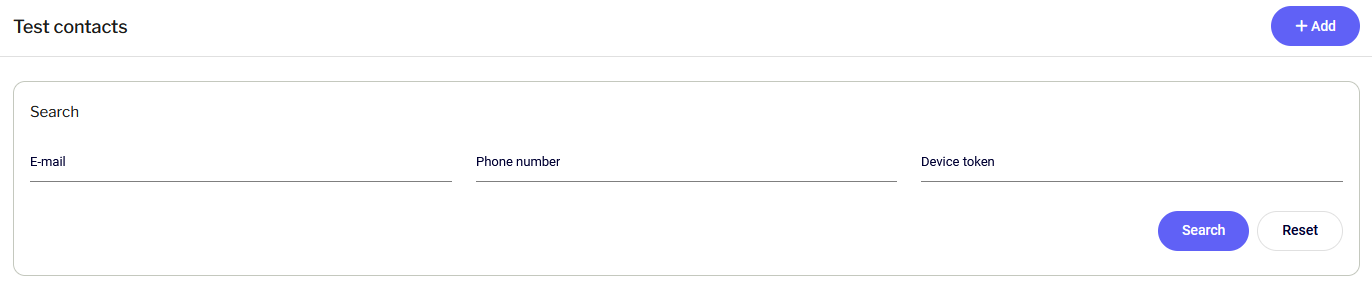
This section allows you to manage users designated for safely testing notifications before sending them to the entire recipient base.
### Search
You can quickly find a specific test contact using the filters above the table:
* **E-mail**: Search by email address.
* **Phone number**: Search by phone number.
* **Device token**: Search by the unique device identifier.
### Contact list
Defined contacts are displayed in a table containing:
* **Name**: Custom name assigned to the contact (e.g., "John's Phone").
* **E-mail**: The user's email address.
* **Phone number**: The phone number assigned to the device.
* **Device token**: Unique device identifier (Device ID).
* **Created at**: The date the contact was added to the list.
To remove a contact from the test list, click the **Remove** option next to the selected row.
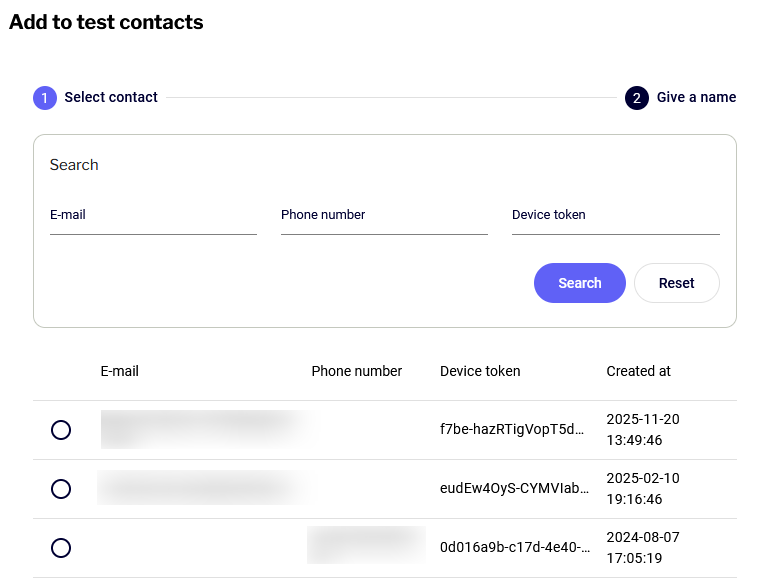
### Adding a new test contact
To define a new test recipient:
1. Click the **+ Add** button located at the top of the screen.
2. Step 1 (Select contact):
* Use the search engine (enter e-mail, phone number, or device token) or find the user directly on the list.
* Check the box next to the selected contact and click the **Next** button.
3. Step 2 (Assign a name):
* Enter a Name for this contact (e.g., "Tester Anna's Phone") to make it easier to identify during test dispatches.
* Click **Add** to save the contact to the list.