> For the complete documentation index, see [llms.txt](https://docs.messageflow.com/llms.txt). Markdown versions of documentation pages are available by appending `.md` to page URLs; this page is available as [Markdown](https://docs.messageflow.com/mobile-push/push-api/outgoing/export.md).
# Export
Using the **Export** button in the top right corner of the panel, you can export the list of campaigns.
1. Click the **Export** button in the top right corner.
2. Once the export is ready, you will receive an email notification.
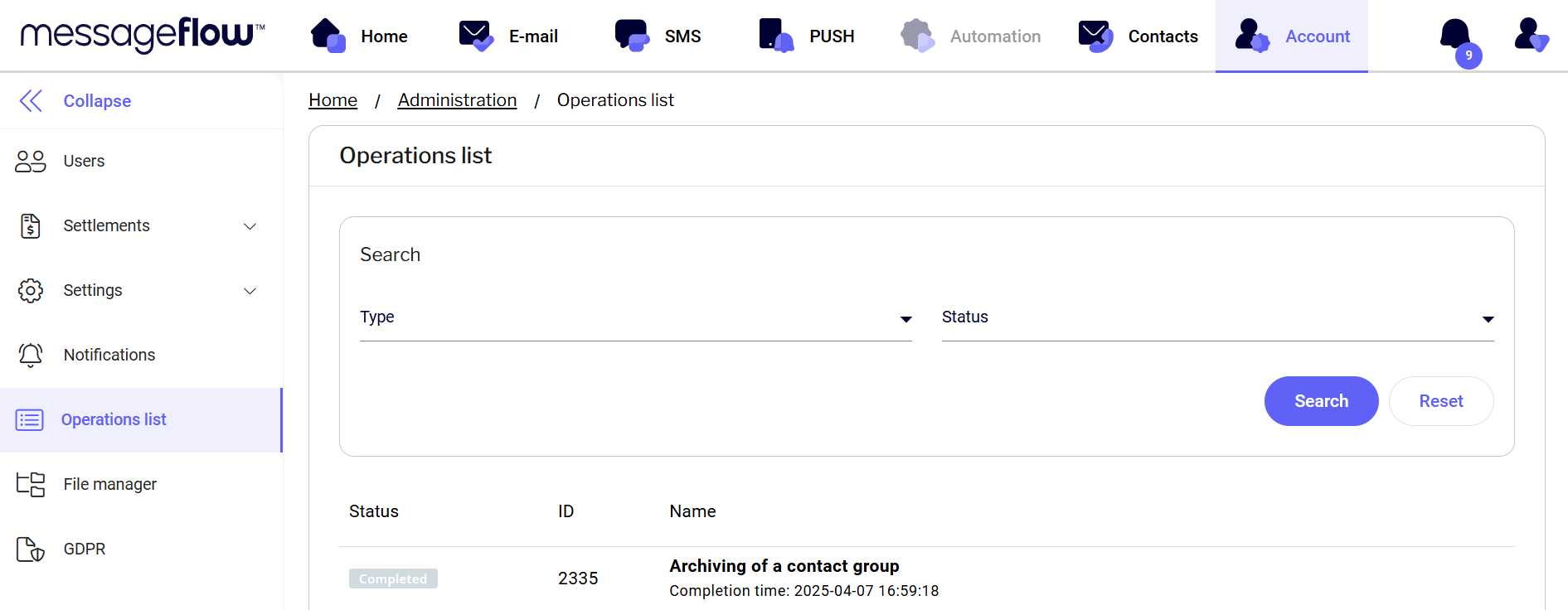
3. The completed file can be found in the **Operations list**:
1. Go to the **Account** tab (select **Account** from the top menu):
2. From the left-hand menu, choose **Operations list**:
Your file will appear at the top of the list – use the **Download** button to save the file to your device.