> For the complete documentation index, see [llms.txt](https://docs.messageflow.com/llms.txt). Markdown versions of documentation pages are available by appending `.md` to page URLs; this page is available as [Markdown](https://docs.messageflow.com/mobile-push/push-campaigns/campaigns.md).
# Campaigns
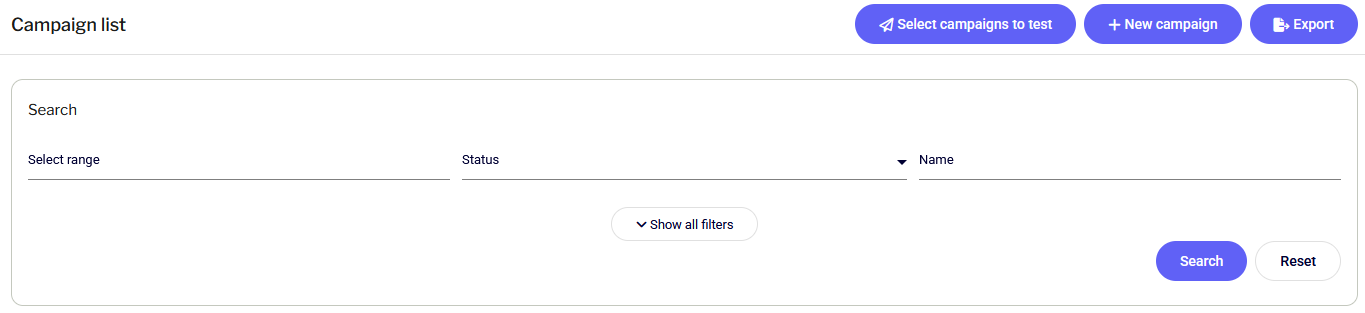
The Campaigns tab (Menu: PUSH -> Campaigns) contains a registry of all created notifications – both completed sends and drafts. This is the main command center for your push communication.
#### Top Action Menu
Key operational buttons are available in the upper right corner of the screen:
* **Select campaigns to test**: Allows you to select draft versions and send them to test devices before the final dispatch.
> *More info: Testing multiple campaigns*
* **+ New campaign**: Launches the creator to build a new Push notification.
> *More info: Creating a push campaign*
* **Export**: Generates a file (available in the Operations list) containing detailed data about the visible campaigns.
#### Search and Filters
To quickly find a specific message, use the search section. The following filters are available:
* **Select range**: Filter by the campaign's creation or sending date.
* **Status**: Allows displaying only campaigns with a specific state (e.g., *Edited*, *Sent*, *Scheduled*).
* **Name**: Search by the internal campaign name (entered manually).
* **Created by user**: Filter campaigns created by a specific team member (select from the user list).
The **Search** and **Reset** buttons are used to apply or clear filters, respectively. The **Show all filters/Hide filters** button hides the search panel to provide more space for the table.
#### Campaign List
The list contains detailed information about each entry:
* **Status**: Color-coded labels indicating the campaign state:
* *Edited (Yellow):* A draft version that can be modified.
* *Sent (Green):* A completed campaign.
* **Name**: The internal name of the campaign along with the date and time of its creation or last edit.
* **Recipients**: Information about the selected target group (group name) or the number of recipients.
* **Details**: Brief statistics for sent campaigns (e.g., the *OK* indicator representing the % of notifications delivered to the gateway).
* ***Booster Info***: If the campaign had an SMS follow-up set (Booster), this column will display the label "Contains: **🚀 Booster Campaign**" with an active link directing to the report of that supplementary follow-up campaign.
* **Actions** (Right side):
* Edit: Available for draft campaigns (inactive for sent ones).
* Report: Visible for sent campaigns – redirects to detailed statistics.
* Menu (three dots): Expands additional options:
* *Summary:* A quick preview of campaign parameters.
* *Copy:* Creates a duplicate of the campaign (useful for recurring sends).
* *Delete*: Available for draft campaigns.
* *Send test:* Allows re-sending a test of the given campaign to selected devices.
#### Data Export
To download the campaign list to a file, click the **Export** button in the top right corner. The ready file can be found in the **Account -> Operations** list tab. The `.csv` file contains, among others: campaign name, ID, status, content with links, recipient count, user login, and KPIs such as CTR, OR, or Swipe.