> For the complete documentation index, see [llms.txt](https://docs.messageflow.com/llms.txt). Markdown versions of documentation pages are available by appending `.md` to page URLs; this page is available as [Markdown](https://docs.messageflow.com/pl/e-mail/bezpieczenstwo-nadawcy/autoryzacja-nadawcow/autoryzowanie-domen-u-hostingodawcow/autoryzowanie-domeny-hostowanej-w-cloudflare.md).
# Autoryzowanie domeny hostowanej w Cloudflare
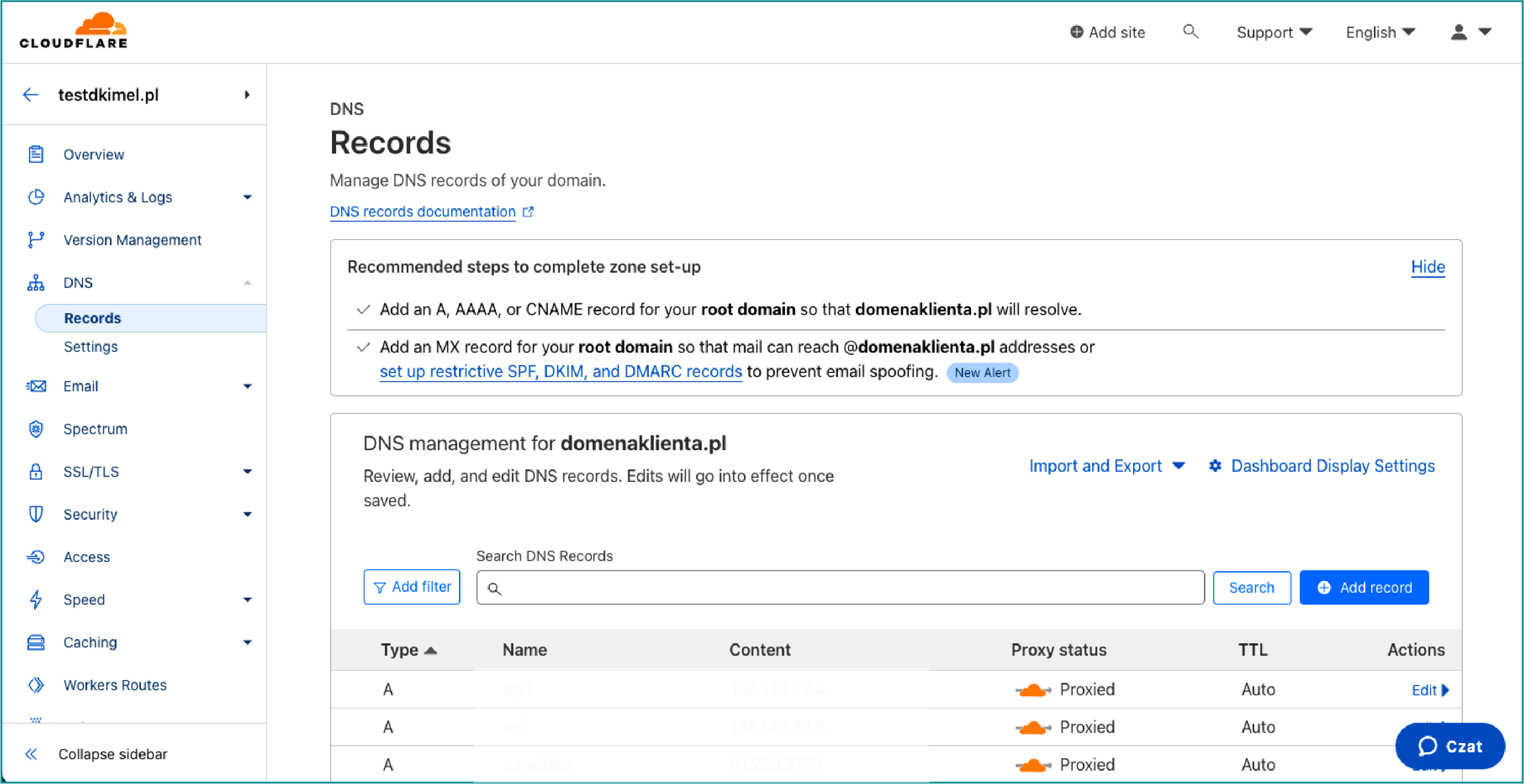
1. Zaloguj się do panelu Cloudflare. Następnie wybierz odpowiednie konto i domenę.
2. Z menu po lewej stronie wybierz zakładkę **DNS**, a następnie kliknij na **Records**.
3. Wybierz przycisk **+Add record.**
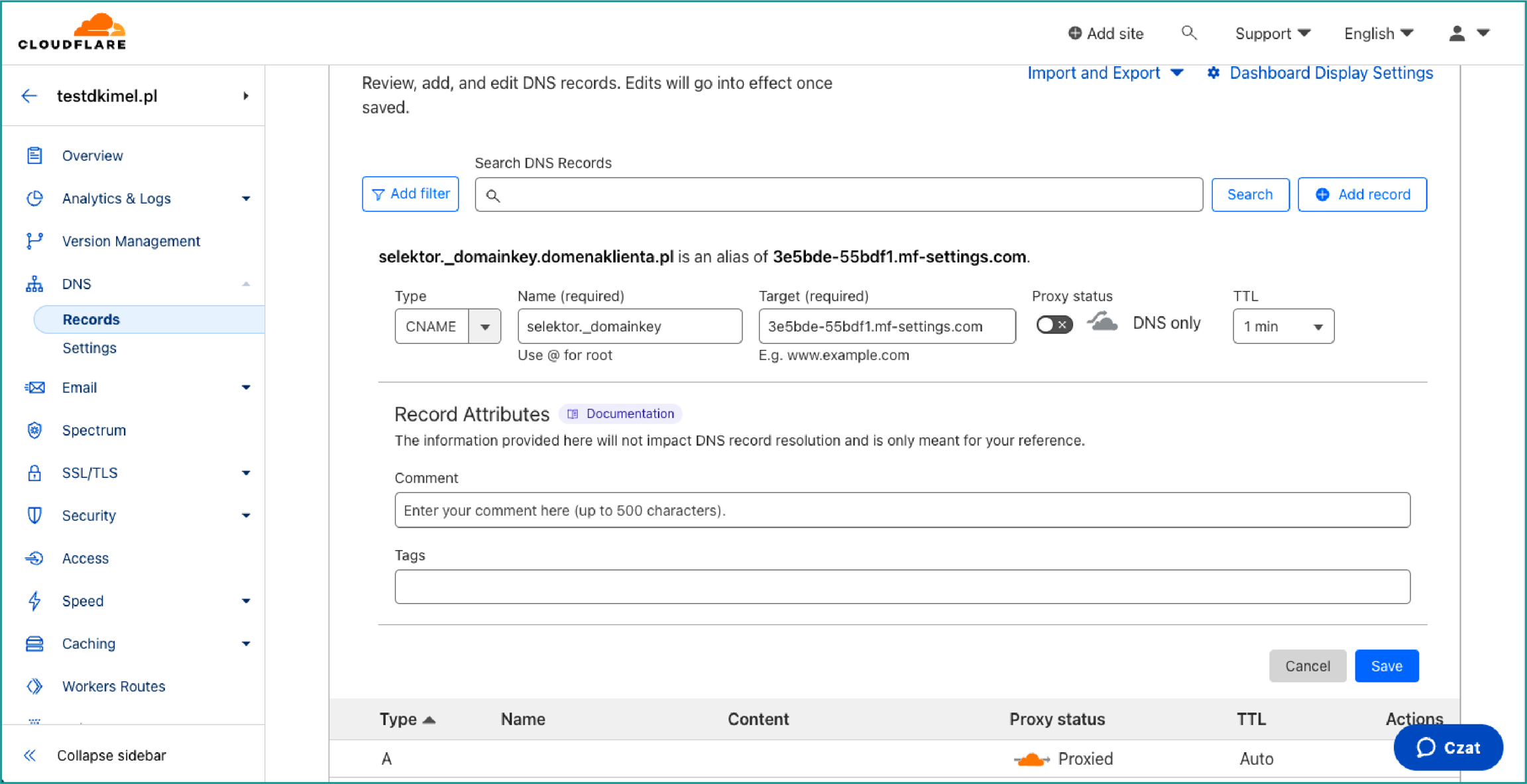
3. Skonfiguruj nowy rekord CNAME:
* W polu **Type** wybierz **CNAME**.
* W polu **Name** wprowadź twój-selektor.\_domainkey.
{% hint style="warning" %}
Uwaga: Nie uwzględniaj nazwy swojej domeny w tym polu.
{% endhint %}
* W polu **Target** wprowadź odpowiednią wartość, która została wygenerowana w panelu MessageFlow.
* Upewnij się, że **Proxy status** jest ustawiony na **DNS only**.
* Ustaw **TTL** na **Auto** lub 1 minutę.
4. Kliknij **Save**, aby wprowadzone zmiany zostały zaktualizowane.
### Weryfikacja autoryzacji:
Odczekaj na potwierdzenie zmian przez system DNS. Proces ten może potrwać od kilku minut do 24 godzin, w zależności od czasu propagacji rekordów DNS.
Sprawdź, czy konfiguracja DKIM została zakończona pomyślnie, klikając przycisk **Weryfikuj** w panelu MessageFlow. Jeśli status wpisu zmieni się na **Zweryfikowany** , oznacza to, że autoryzacja przebiegła pomyślnie.
{% hint style="info" %}
W razie pytań lub wątpliwości zalecamy bezpośredni kontakt z działem wsparcia technicznego dostawcy usług hostingowych, tak aby otrzymać precyzyjne i najbardziej aktualne instrukcje dotyczące Twojego konta.
{% endhint %}