> For the complete documentation index, see [llms.txt](https://docs.messageflow.com/llms.txt). Markdown versions of documentation pages are available by appending `.md` to page URLs; this page is available as [Markdown](https://docs.messageflow.com/sms/sms-campaigns/analytics-audiences-and-reports/reporting-and-analysis-of-sms-campaign-results.md).
# Reporting and analysis of SMS campaign results
The **Report** tab provides access to detailed statistics after a completed SMS campaign, allowing a full analysis of its results.
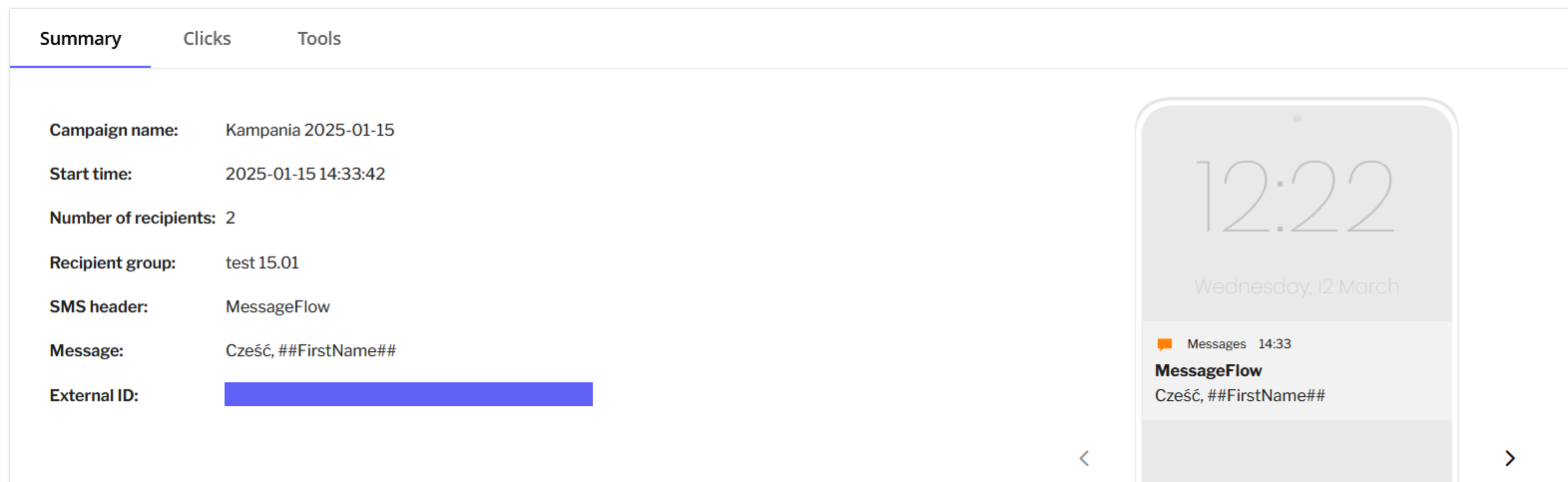
**1. Summary**
* In the Summary tab, you will find the main information about sending SMS campaigns, such as:
* **Campaign name**: How the campaign was named.
* **Shipping time:** When the messages were sent.
* **Number of recipients:** How many people received the messages.
* **Recipient group:** To which group of contacts the campaign was sent.
* **External ID:** external campaign identifier
* **Headline and message content:** A preview of the content that was sent to the recipients.
* **Delivery statistics:**
* **Delivered:** How many messages were successfully delivered.
* **Undelivered (Non-delivered)**: The number of messages that did not reach the recipients.
* **WAITING status**: Messages that are still waiting for a report from the operator and their final delivery status is not yet known.
**2. Clicks:**
* Under Clicks, you can verify how many people clicked on the ide.do the link that was used in the campaign.
**3. Tools:**
In the Tools tab, there are additional operations that can help you manage your campaign results:
* **Archive non-existent contacts:** This option allows you to delete contacts that are inactive or do not exist.
* **Export undelivered messages:** The ability to export a list of messages that have not been delivered, allowing you to further analyze and attempt to contact again. Export CSV report: Download the full campaign report in CSV format for further analysis.
* **Create a group from the recipients who clicked the link:** You can create a new group of recipients who clicked the link to, for example, send them another message or customize an offer.
**4. Verify link statistics with suffixes:**
* To verify link statistics with suffixes, go to: **SMS** -> **SMS Campaigns** -> **Settings** -> **Links with suffixes.**
.png?alt=media&token=b0fb6055-e76b-4351-b8c5-50ad4d84f5f2)