> For the complete documentation index, see [llms.txt](https://docs.messageflow.com/llms.txt). Markdown versions of documentation pages are available by appending `.md` to page URLs; this page is available as [Markdown](https://docs.messageflow.com/sms/sms-campaigns/campaigns/creating-sms-campaign.md).
# Creating SMS campaign
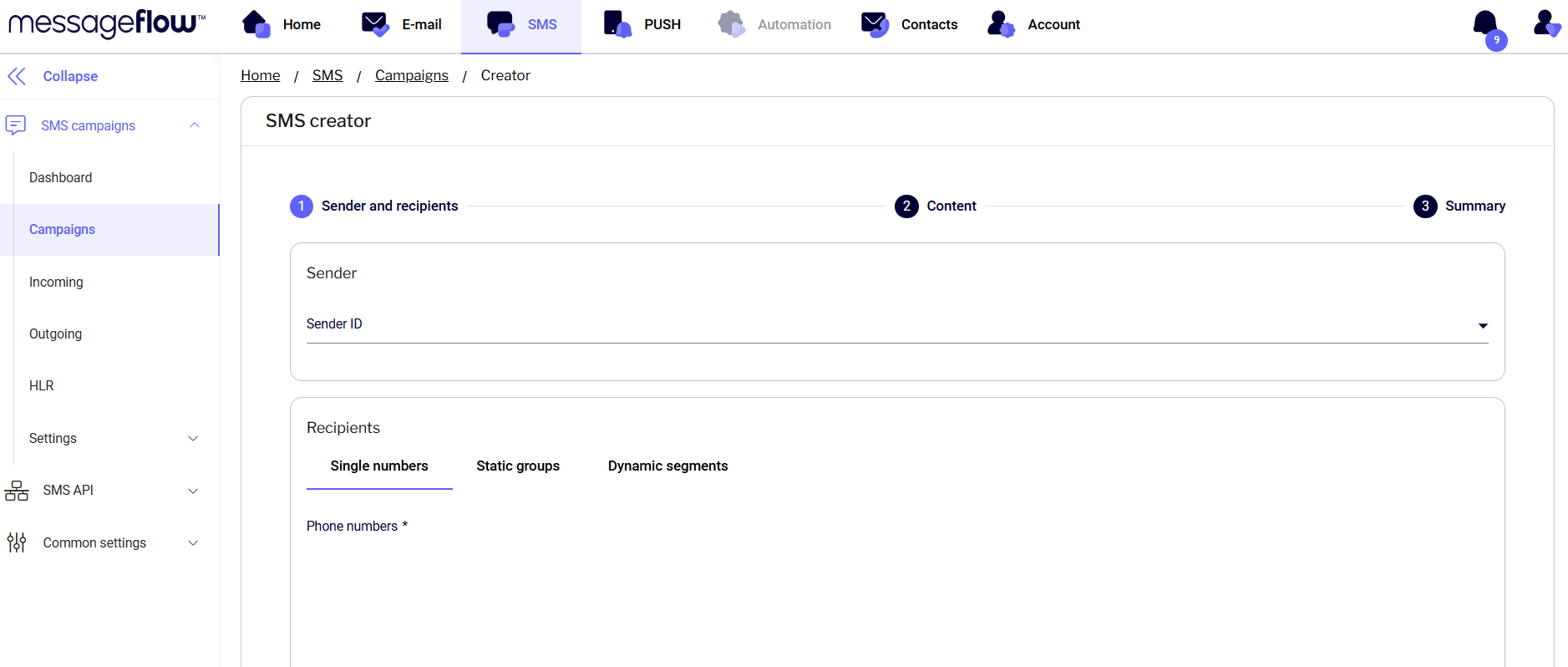
1. After logging in to the panel under **SMS** -> **SMS Campaigns** -> **Campaigns**, click the **+** sign on the right and complete the data:
1. **Sender**: select an SMS header from the list (by default, one SMS header is activated on the account)
2. **Recipients**: manually enter the numbers in the "Individual Numbers" tab to which you want to send, following the guidelines at the bottom of the page for format and number separation, or go to the "Static Groups" tab and select a group of previously created contacts.
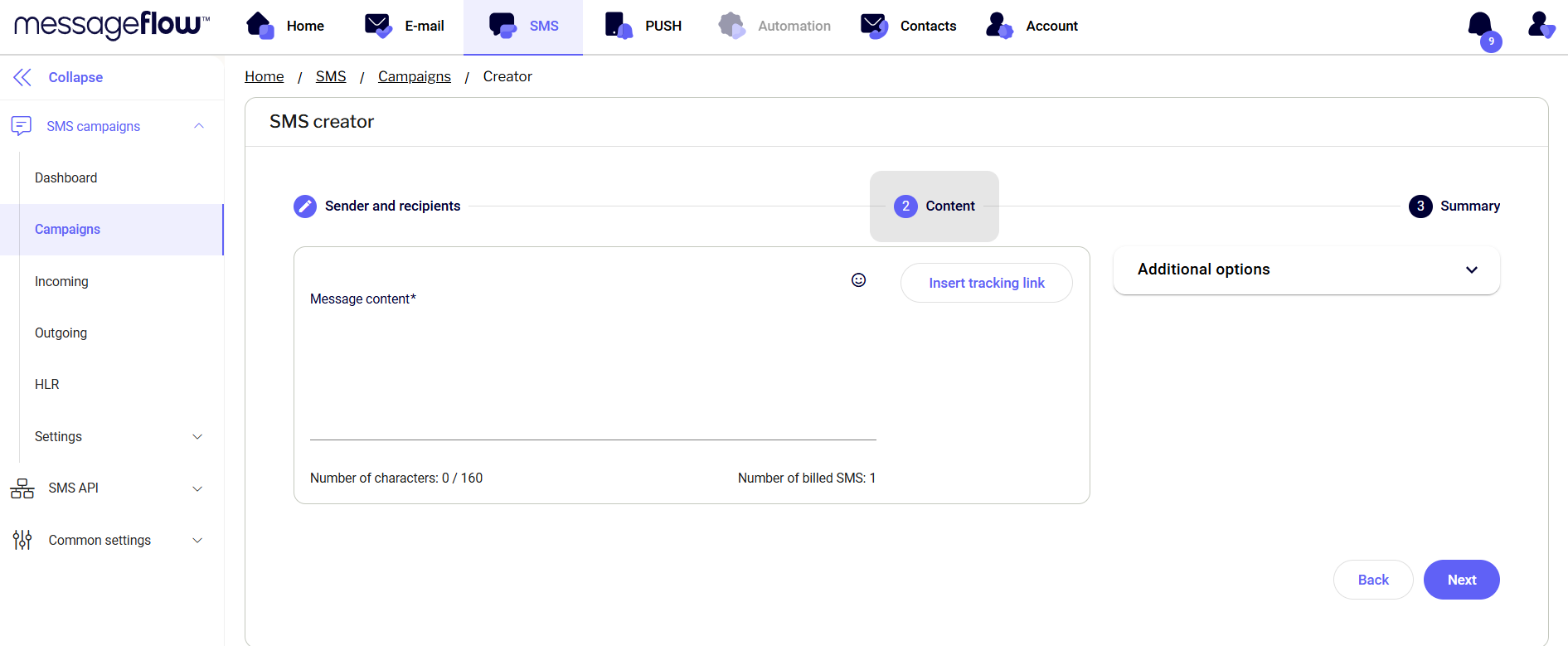
2. After going to the **Content** tab, complete the content of the message.\
\
The character counter below provides information on the number of characters used in the billed messages. Please note that the use of special characters in the body of the message will result in a reduction of the number of characters in one billed SMS from **160 to 70**, while we will also be informed about their use. If you have selected the option to send a message to multiple contacts, you can personalize the content by utilizing the additional fields assigned to each contact. To do so, simply enter the relevant contact information and select the appropriate item from the list titled "**Personalization**."
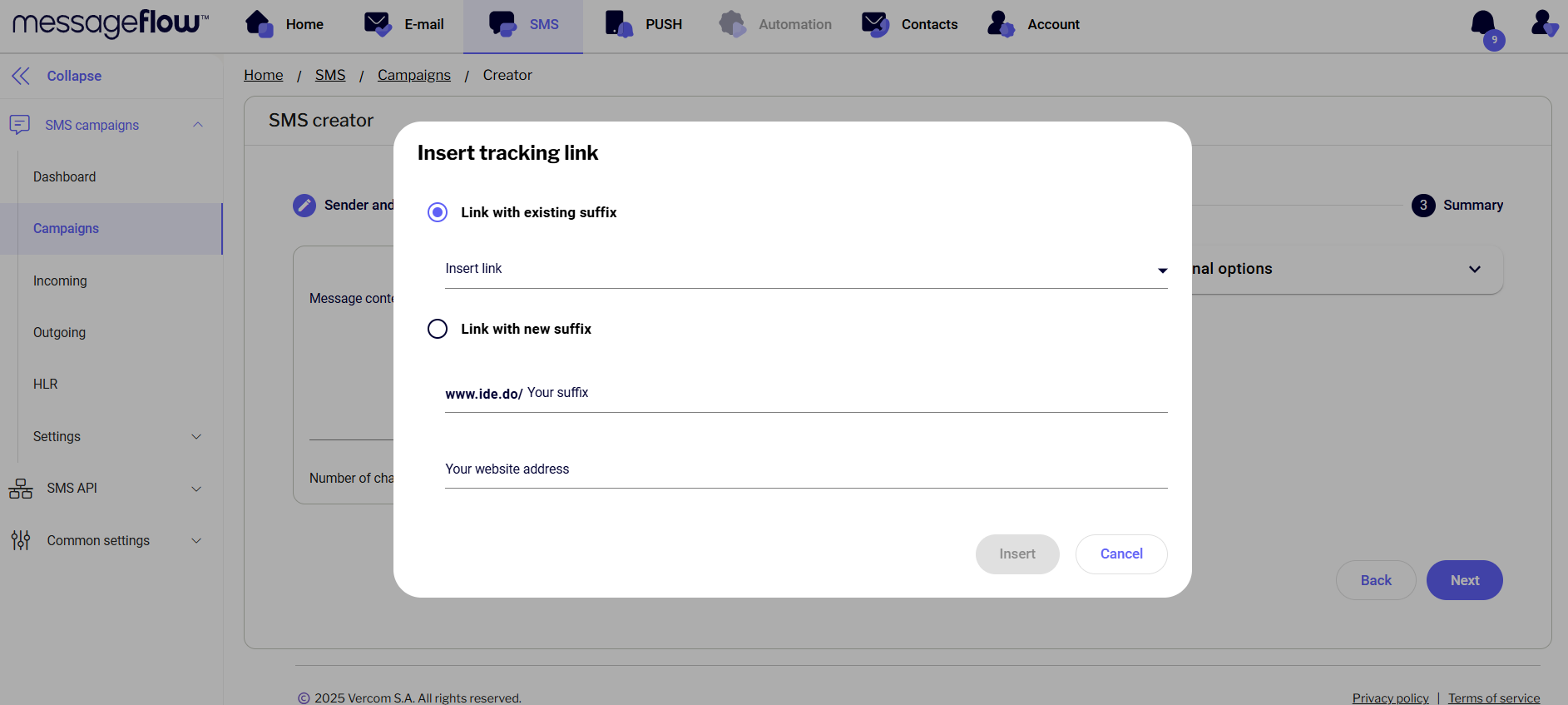
3. In the "**Additional options**" field, you can change the name of the campaign, or insert a shortened http link into the content of the message using the button -> **Insert tracked link**.\
\
If you are sending to individual contacts, the only way to insert a link is to define a new link with a so-called suffix, i.e. a fixed text that will be displayed as [www.ide.do/suffixname](http://www.ide.do/suffixname) - you can find all predefined suffixes in **SMS** -> **SMS Campaigns** -> **Settings** -> **Links with suffixes.**\
\
If, on the other hand, the dispatch is to a group of recipients, there is no need to make additional settings, just enter the link to the page and approve it:
### Testing an SMS campaign
SMS campaign testing is a test send of selected campaigns to selected phone numbers. We recommend conducting tests before sending out any SMS campaign.
1. Go to the **SMS tab → Campaigns**, and click the **Select campaigns to test** button.
2. Next, select the campaigns you want to test by checking the appropriate boxes. You can only choose from campaigns that have not yet been sent.
3. Once you've selected the campaigns to test, click the **Send tests** button.
4. In the window that appears, enter the test phone numbers. If any of the selected campaigns use personalization, a **Personalization** section will appear in the window. Choose the phone number that will be used to simulate the personalization.
### Sending campaign
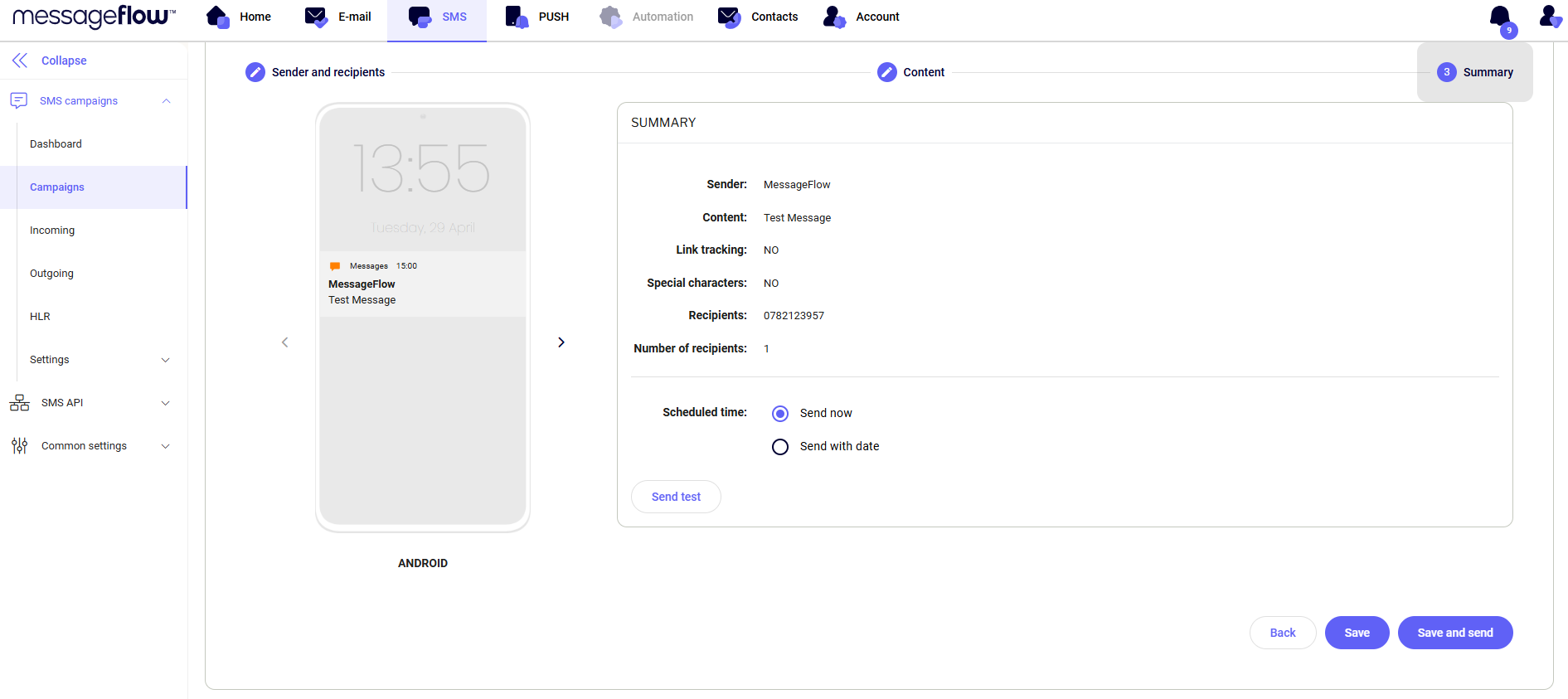
In the last step, you can click the -> **Save** button, which will save the campaign (but it will neither be sent nor scheduled in time), or choose the -> **Save and Send** button, which will send, or schedule it if you have chosen a later date to send the campaign.
6. In the list of campaigns under **SMS** -> **SMS Campaigns** -> **Campaigns**, there can be the following statuses:
* **Edited** - our campaign is in an edited state, it has not been shipped or scheduled
* **Set up** - the campaign is set up for future shipment
* **In progress** - campaign shipment underway
* **Sent** - the campaign has been successfully sent.