Creating a push campaign
The wizard in the MessageFlow application allows you to plan and send a notification in a few intuitive steps. To start:
Go to the Campaigns -> Campaign list tab.
Click the + New campaign button located in the upper right corner.
Enter the internal campaign name (visible only within the system) and click Create campaign.
Step 1: Content
This is the most crucial stage where you define what the user will see on their phone screen.
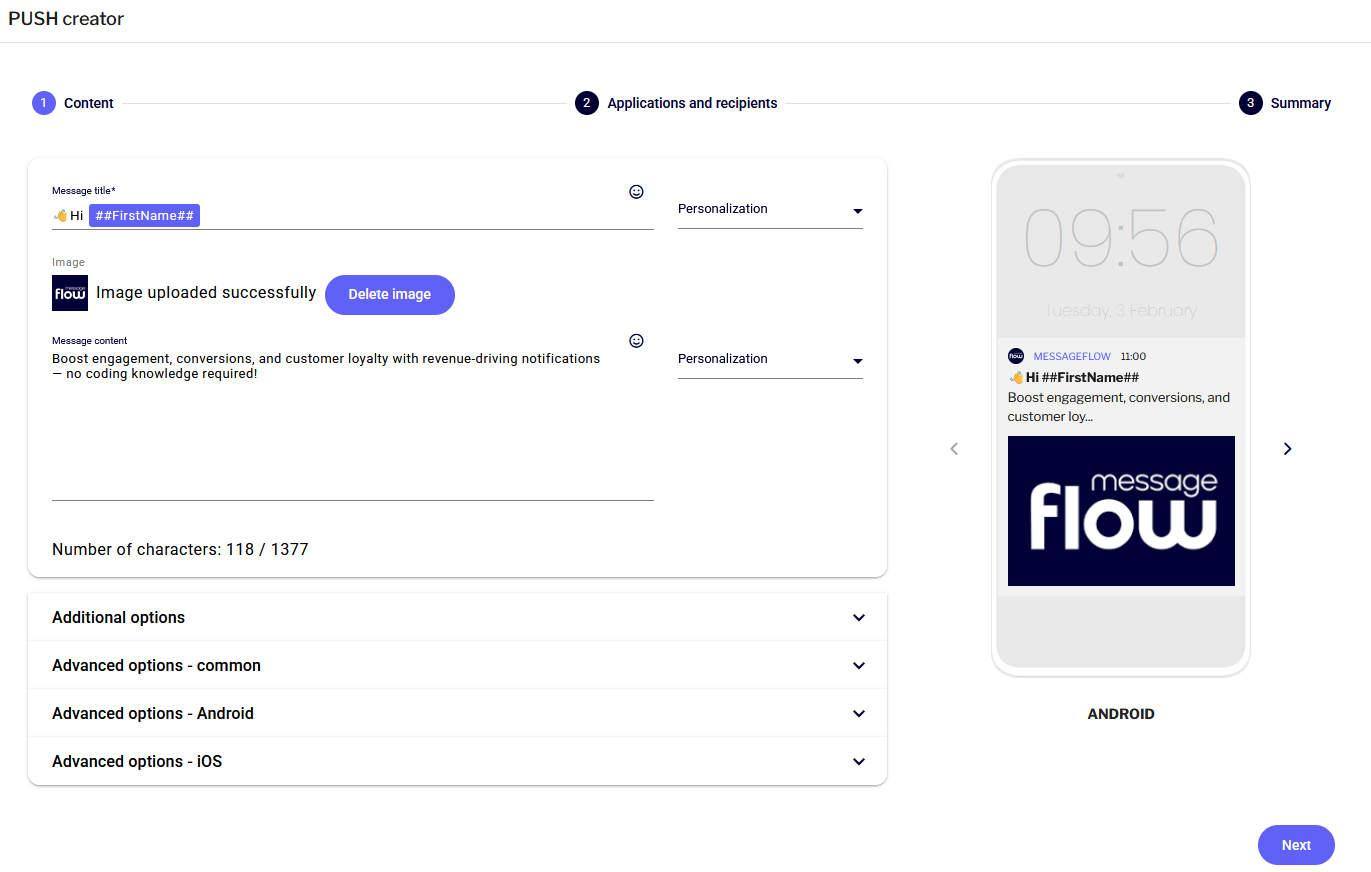
Message title: A short headline for the notification. You can use personalization (e.g., first name) by selecting it from the list.
Message content: The main text of the message. Remember the character limits (place the most important information at the beginning so it doesn't get cut off before expanding).
Image and emojis:
You can add emojis to make the message stand out.
Image: Upload a graphic file (JPG, PNG) to send a so-called Rich Push.
Tip: .gif files animate exclusively on iOS devices.
Live preview: On the right side of the screen, the system displays a real-time visualization of the notification for Android and iOS systems.

Step 2: Additional options
In this section, you will configure technical sending parameters and analytics.
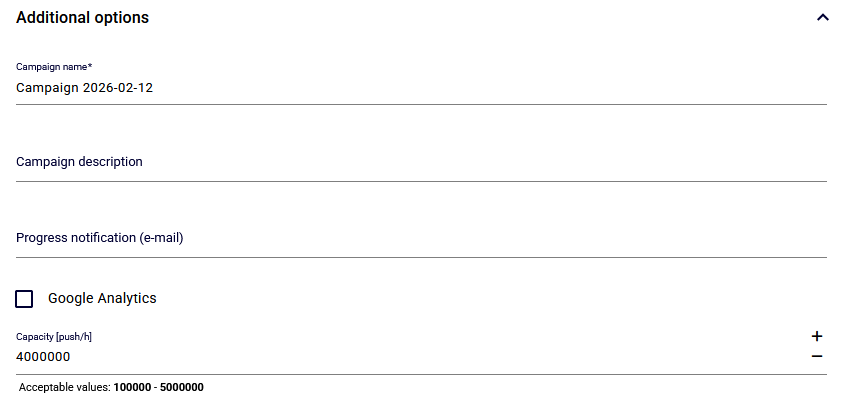
Campaign description: An optional internal note for your team.
Progress notification (e-mail): Check this if you want to receive an email notification when the dispatch is complete.
Google Analytics: You can use default UTM parameters or define your own to track traffic in analytical tools.
Capacity [push/h]: Specify how many messages per hour the system should send (from 100,000 to 5,000,000). This feature protects your application and servers from sudden traffic spikes (the so-called DDoS effect).

Step 3: Advanced options
In this section, you will fine-tune the notification behavior and adapt it to the specific needs of various operating systems. The options are divided into common and platform-dedicated settings.
Advanced options - common
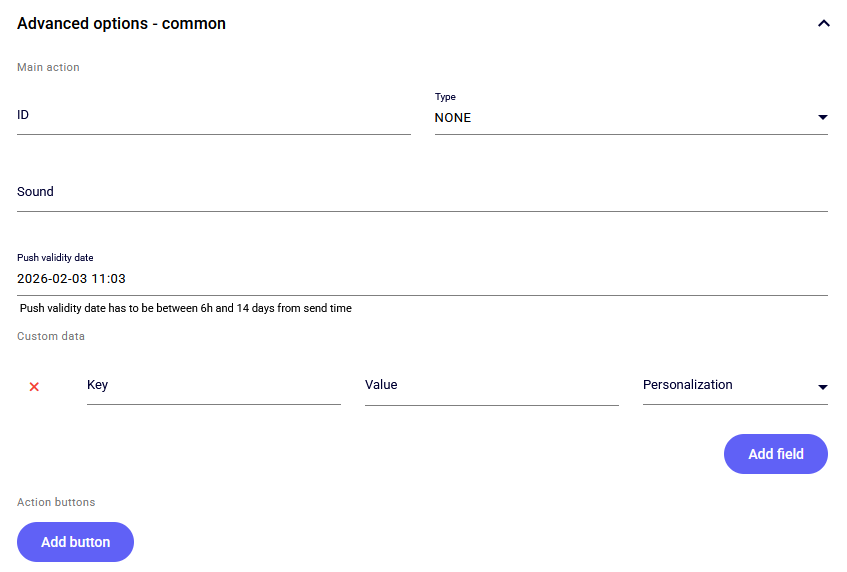
ID: An optional, unique identifier that allows for later identification of a specific notification in analytical systems.
Type: Specify what should happen after clicking the notification:
NONE: No additional action (only opens the app).
BROWSER: Opens the indicated URL in the device's default web browser.
WEBVIEW: Displays the indicated webpage directly inside your application (without leaving it).
DEEPLINK: Takes the user to a specific view or section in the app (e.g.,
app://promotions/summer).
Sound: Select a sound file (resource name) that will be played when the notification arrives.
Push validity date: Define how long the server (FCM/APNs) should attempt to deliver the message if the user's device is offline (e.g., turned off or without internet).
Range: from 6 hours to 14 days.
Custom data (Add field): Allows sending additional parameters to the application in
Key: Value(JSON) format. These are invisible to the user but can trigger specific logic in the app (e.g., displaying a specific banner upon launch).Example: Key:
promo_code, Value:SUMMER2025.These values can also be personalized.
Action buttons (Add button): Add interactive buttons displayed below the notification content (e.g., "Yes", "No", "See More").
Text: Button label.
Type: Assign an action to the button (e.g., open a link in the browser).
Icon: Optional graphic next to the button.

Advanced options - Android
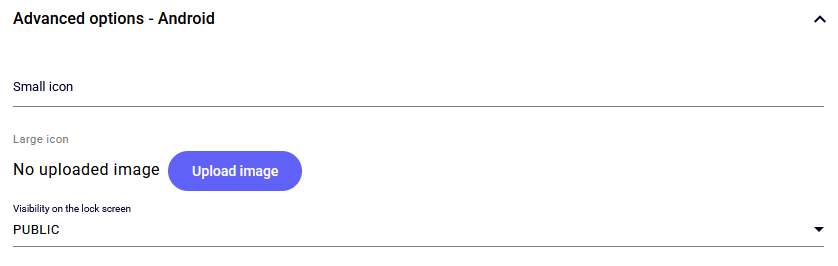
Small icon: An icon displayed in the notification bar (requires prior configuration in the app).
Large icon (Upload image): Additional graphic displayed next to the notification content (e.g., sender logo or product photo).
Visibility on the lock screen:
PUBLIC: Notification fully visible.
PRIVATE: Hides sensitive details (e.g., message content) until the user unlocks the phone.
SECRET: Notification is not displayed on the lock screen.

Advanced options - iOS
Subtitle: An additional line of text displayed directly below the notification title (in bold) and above the main content. The perfect place to clarify the notification topic.

Step 4: Applications and recipients
Choose who the campaign should reach.
Applications: Select from the list the mobile applications to which users are assigned.
Recipient group:
Static groups: Pre-prepared, fixed lists of contacts.
MessageFlow Segments dynamic segmenter: Groups updated in real-time based on user behaviors or attributes.
Step 5: Summary and Booster
This is the final stage where you verify the correctness of all settings before sending and have the opportunity to increase campaign effectiveness using the Booster tool.
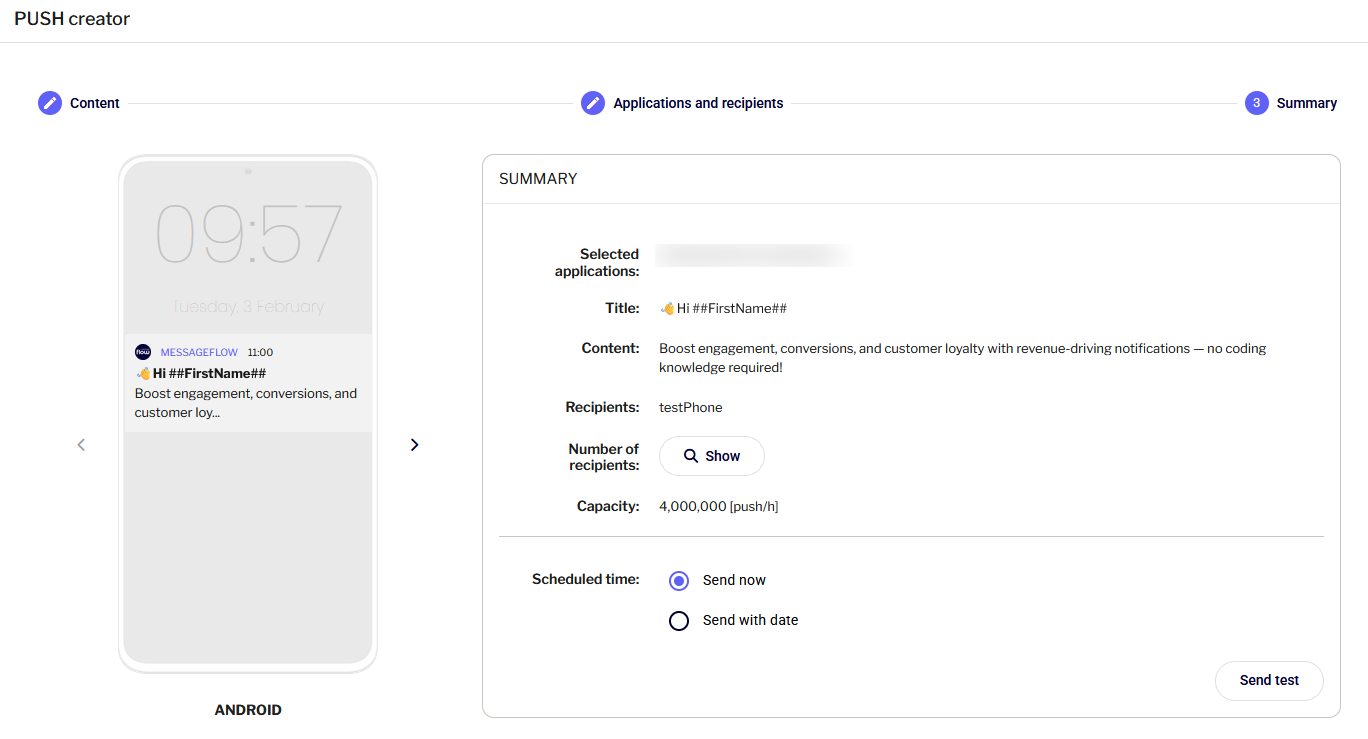
Campaign summary
In the upper part of the screen, you will find a complete summary of your dispatch parameters.
Verification: Check the visual preview of the notification, the selected recipient group, and technical settings (application, recipients).
Scheduled time: Here, you decide when the campaign should launch. Choose one of the options:
Send now: The campaign will be executed immediately after clicking the "Save and send" button.
Send with date: Allows you to indicate a specific future date and time when the system will automatically start the dispatch.

Booster SMS (Increasing reach)
For PUSH campaigns, the Booster SMS feature is available. It allows you to automatically reach users who ignored the Push notification by sending them an SMS message instead.
How does it work? If you enable this option, the system will send an SMS to people who have not opened the Push notification within a specified time. A necessary condition is having phone numbers assigned to contacts in the selected group.

Booster Configuration
To activate the function, move the slider next to the Booster SMS option to the On position, and then fill in:
SMS Sender / 2-way Numbers: Select the sender field (Sender ID) from the list, e.g., your company name, or a 2-way number if you want to allow recipients to reply.
Message content: Enter the SMS text (remember that you can also use personalization here).
Tracked links: You can add a tracked link to the content, which will allow monitoring the click-through rate (CTR) in the rescue campaign.
Counters: Below the text field, the system shows the number of characters and the number of SMS parts the message will consist of.
Special characters: If you use special characters or emojis, make sure the option for handling special characters is checked (this affects the character limit in a single message).
Tip: You can use the same personalization variables as in Push (e.g., client's name).
Sending conditions: Specify how much time after the main Push campaign the SMS should be sent (from 2 hours to 7 days).
Criterion: Booster is sent to people who did not click/open the notification.
Testing: Before the final dispatch, click Send Booster test to check how the SMS displays on your phone.
Important: If no contact in the selected recipient group has a phone number, the Booster option will be inactive (grayed out).
Finalizing dispatch
Three operational buttons are available at the bottom of the screen:
Back: Allows you to return to the previous step (recipient selection) and make corrections.
Save: Saves the campaign as a draft (Status: Edited) but does not launch it.
Save and send: Approves the campaign and starts the sending process (or queues it according to the selected date).
Last updated