# Authorization of a domain hosted at Home.pl

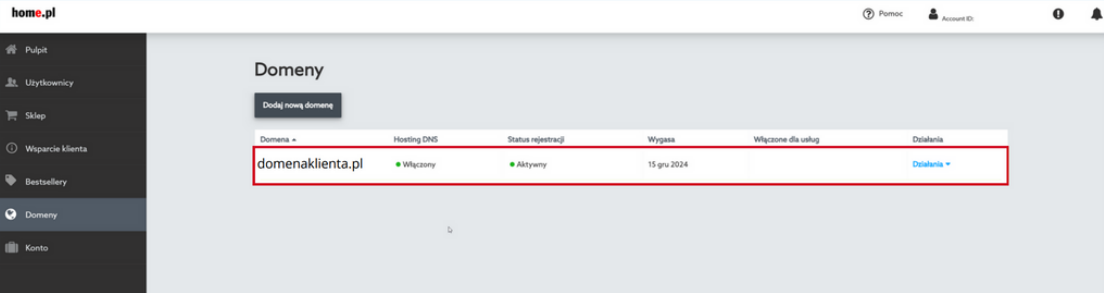
1. Log in to the domain management panel at Home.pl<br>

   <figure><img src="https://content.gitbook.com/content/DIGjHYIXYoHyJoOeeUgD/blobs/sVpAiZYNq0GnPXBIssn4/image.png" alt=""><figcaption></figcaption></figure>
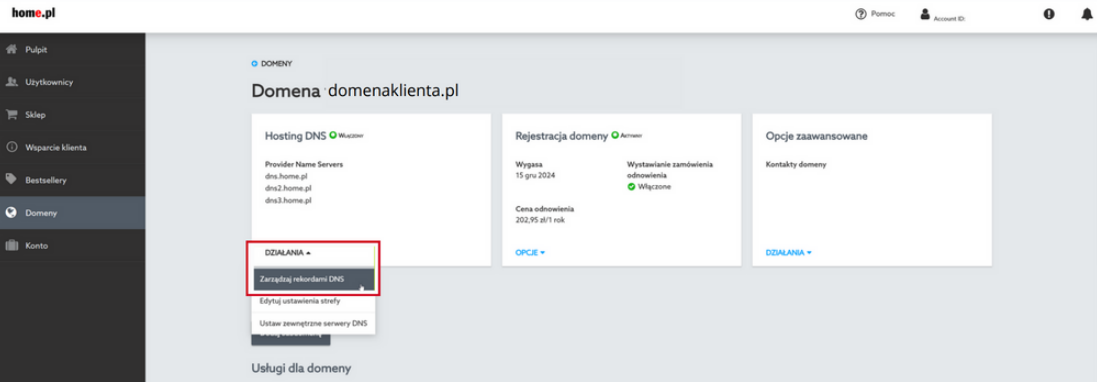
2. Select the "Manage DNS records" section for your domain<br>

   <figure><img src="https://content.gitbook.com/content/DIGjHYIXYoHyJoOeeUgD/blobs/2wHTUKCFFKli4mqtdcWF/image.png" alt=""><figcaption></figcaption></figure>
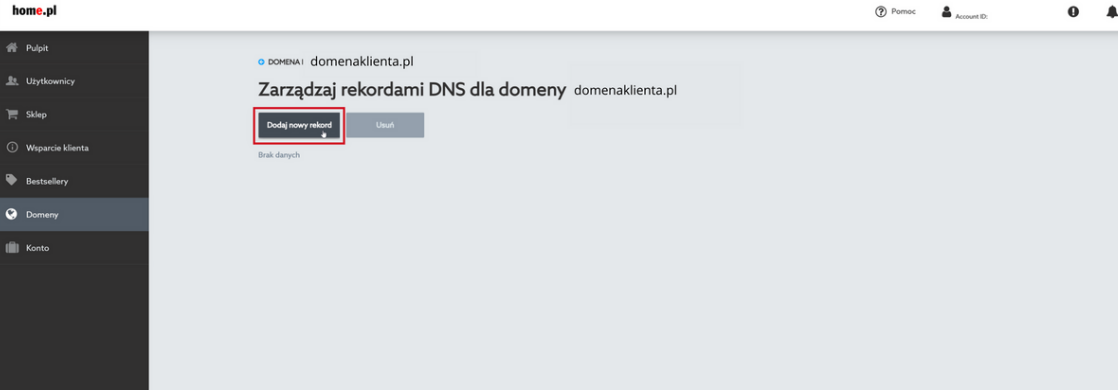
3. Then click "Add new record", which will allow you to add a new DNS record.<br>

   <figure><img src="https://content.gitbook.com/content/DIGjHYIXYoHyJoOeeUgD/blobs/L7XnHMCrhMek6MOddqYI/image.png" alt=""><figcaption></figcaption></figure>
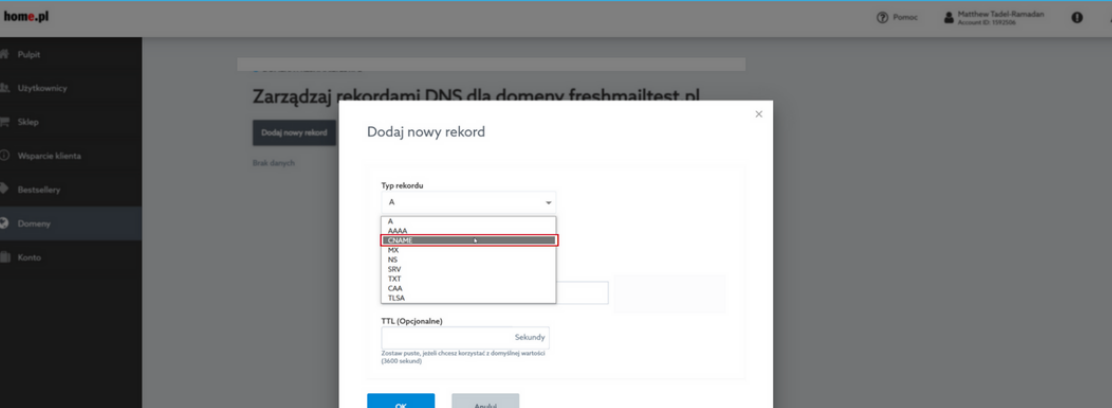
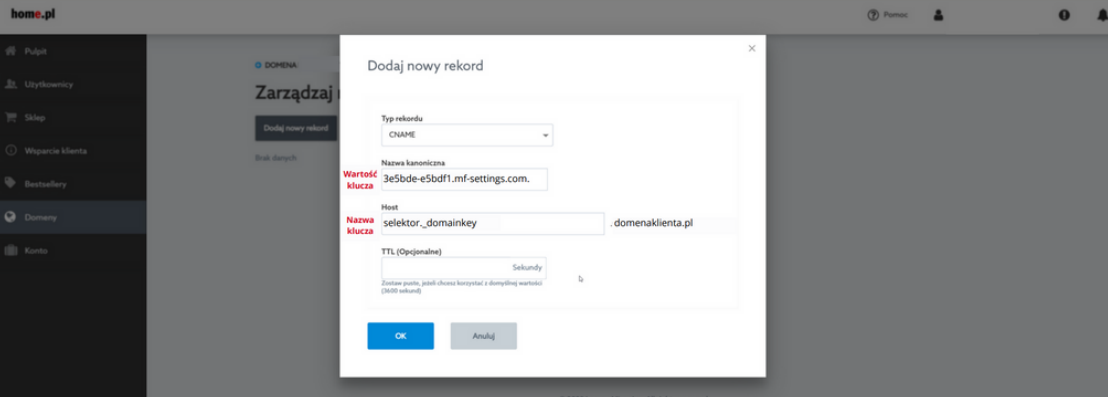
4. Select the "CNAME" record type.<br>

   <figure><img src="https://content.gitbook.com/content/DIGjHYIXYoHyJoOeeUgD/blobs/vxVi4FN7AxU4GYHrfpYy/image.png" alt=""><figcaption></figcaption></figure>
5. Complete the "Canonical name" field with the value of the key generated in the MessageFlow panel.<br>

   <figure><img src="https://content.gitbook.com/content/DIGjHYIXYoHyJoOeeUgD/blobs/pRuYUZMyWFleCFEVqnBT/image.png" alt=""><figcaption></figcaption></figure>
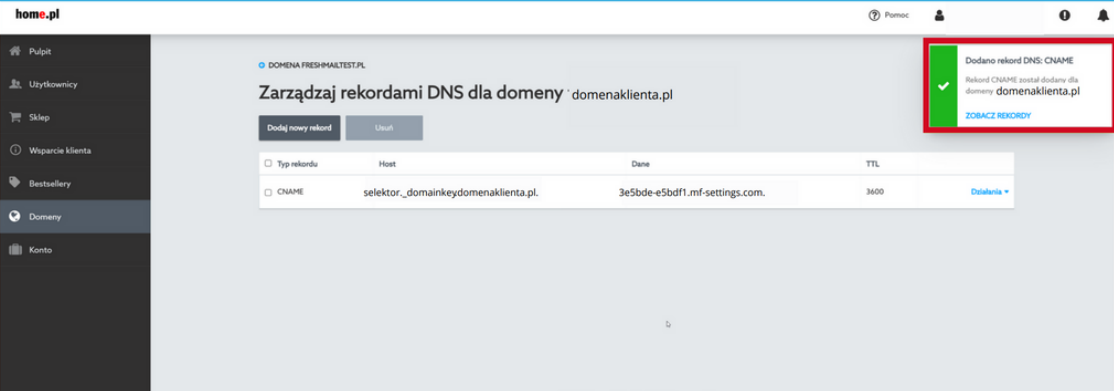
6. Once the changes are approved, the new CNAME record will be added to your domain. <br>

   <figure><img src="https://content.gitbook.com/content/DIGjHYIXYoHyJoOeeUgD/blobs/e7klyjddoGeM3wGTaIOl/image.png" alt=""><figcaption></figcaption></figure>
7. Waiting for the DNS system to approve changes can take several minutes or hours. It all depends on the propagation of DNS records. The default setting of TTL 3600 means that the waiting time is one hour.

{% hint style="info" %}
If you have questions or concerns, we recommend that you contact your hosting provider's support department directly so that you receive precise and most up-to-date instructions for your account.
{% endhint %}